Guide › Race cards
Race cards
A race card is the course of your race: where the scored sprints and KOMs are, the climbs, and what each arch gives. Add your plan for each item, and the Director Sportif calls them as they come.
What a card gives you
- Calls before each scored segment, with your plan: "sprint in 70", "KOM in 40", or "position in 70" and "skip it in 70" for the ones you've decided not to fight for.
- A countdown to the line once you're in a scored segment ("sprint line in 25"). The points are decided at the end of the segment, not at its start banner.
- Power-up advice at arches: "use VAN in 35" before an arch that gives a new one, so the one you hold isn't wasted, or "keep VAN in 35" if your plan is to save it.
- Your own notes for a climb or the finish, read out word for word shortly before it, with the seconds after them ("big gear in 25").
- In a contested sprint, "ease to FTP" or "ease off" after your jump, once your place is safe.
- The title card and chapters: with OBS, the video's title card shows the course from the card, and the YouTube chapters name each sprint and climb.
Without a card the Director Sportif still gives every other call: the pack, climbs from the road ahead, the finish and power-ups. A card adds what only the race knows: which segments score, and what the arches give.
1. Make the card
On the race card maker:
- Pick the world, the route and the laps. Every sprint, KOM, climb and arch on it is placed at its race km, from Zwift's own route data, with a height profile to check against.
- Name it and date it (e.g. "ZRL Round 2 Week 1"), and pick the format (points, scratch, time trial…).
- Fill in what only the race guide knows. Tick Scored on the segments that count in this race, and pick what each arch gives (AERO, VAN, random…). Arches start as unknown, because they change from race to race. Untick anything you don't want called.
- Notes on the maker are course facts kept in the card file, for anyone you share it with. The Director Sportif doesn't read them out: your own plan and notes go in the mod (step 3).
- Download the card. It's a small file in your Downloads.
Below the card, the maker can also suggest bikes and wheels for the course, from your height, weight and the power you race at.
Where the facts come from
The positions come from Zwift's route data. Which segments score and what the arches give come from the race's own guide (the organizer's page, or Zwift Insider's). A card holds only course facts, so it's fine to share one with your team: your plan stays on your computer.
2. Load it
- In the Director Sportif window, open the gear and go to the Race card tab.
- Press Import a card and pick the file you downloaded. It's checked, then added to the list as "(imported)".
- A card with the same name and date (made again, say with a fix) replaces the old one.
- Remove takes an imported card out, and your plan for it with it.
- The Director Sportif also ships with a few cards (ZRL races it was tested on); they're in the same list.
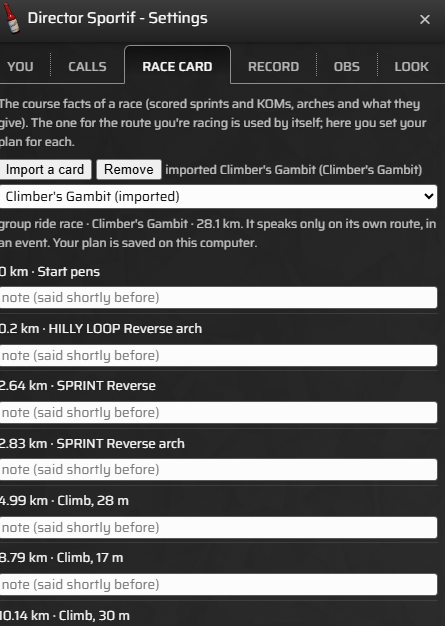
3. Set your plan
Pick the card in the list. Each item has a row:
| Item | Your choices | You'll hear |
|---|---|---|
| A scored sprint or KOM | contest (the starting choice), position (be near the front, no sprint), or skip. | "sprint in 70" / "KOM in 40", "position in 70", "skip it in 70"; then "sprint line in 25" or "KOM line in 25" inside the segment (not for skip). |
| An arch that gives a power-up | use (the starting choice): use what you hold before the arch; or keep it. | "use VAN in 35" or "keep VAN in 35", with the power-up you're holding. Only when you hold one. |
| Anything | A note, in your own words. | Your note, word for word, then the seconds, about 30 s before. For a climb, the finish or anything without a call of its own; on a scored segment or an arch, the call says your plan instead. |
Your plan is saved on your computer, one for each card, as you change it. Nothing to press.
On race day
- The card picks itself. When you join an event, the Director Sportif uses the card for the event's route. With more than one card for that route, it takes the one dated nearest to today.
- Check it in the pen: the Director Sportif window's line shows "card: name" now and then, or "no race card".
- Only on its own route, only in an event. A card's km are race distances on its route, so on any other route, or in a free ride, it stays quiet.
- When the calls come: a scored segment about 70 seconds before it, at your speed; an arch about 40 seconds before (only if you hold a power-up; with your bike set to TT, before every arch, since each takes what you hold, and it says "use" whatever your plan); a note about 30 seconds before. In the last 1.5 km, the race card calls still speak alongside the finish calls.
- Hear them: the Race card row on the Calls tab has its Voice on to start with. See the calls.
When it doesn't work
| What happened | Likely why | What to do |
|---|---|---|
| "no race card" in the pen | No card in the list is for this event's route. | Make one for the route on the race card maker and import it. The route must match the event's exactly (e.g. the reverse of a route is a different route). |
| "not a usable race card" | The file isn't a race card, or it's missing its route. | Download it again from the race card maker. |
| Calls at the wrong place | The laps, or a lead-in, differ from the race. | Check the race guide's distance against the card's, make it again with the right laps, and import it (it replaces the old one). |
| No arch calls | You weren't holding a power-up, the arch gives XP only, or what it gives is still unknown. | Set what each arch gives on the race card maker. |
| No race card calls at all | The Race card call type is off, or you're not in an event. | Calls tab: tick Voice (or Chime) for Race card. |
See also: Make a race card · The calls · OBS · All guides