Guide › Recording and ride reports
Recording and ride reports
The Director Sportif can record your ride to a file on your computer. Bring that file to caffecter.com and get a free report: what your position cost, how long you spent in the draft, and your best and worst minutes, linked to your video.
Recording
Three ways, all in the Director Sportif window. Use whichever suits you; they work together.
| Way | Where | What it records |
|---|---|---|
| Record | The button on the window's line. | From when you press it until you press it again. While it records, the button shows the time ("● 12:03"). |
| Record every event | Gear ▸ Record tab. | Each event you join, by itself: from 5 minutes before the start (or when the race gets moving) to 2 minutes after you finish. |
| Record all the time | Gear ▸ Record tab. | Every ride, a file per free ride. With Record every event on as well, each event still gets a file of its own. |

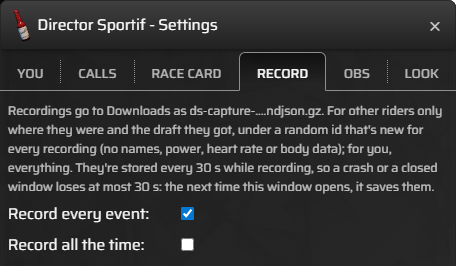
Both settings start off. Record every event is the one most riders want: race days take care of themselves, and it's also what starts OBS with the race.
The rules it follows
- Pen early, warm up, back in: leaving the pen before the race starts doesn't use up the event. It still records the race when you come back.
- A finished event isn't recorded again, even if you stay in it.
- A Stop you press holds: with Record all the time on, pressing Record to stop keeps it stopped until you join or leave an event.
- A Record you pressed in the warm-up is split when the event's own recording is due (5 minutes before the start), so the event gets a file of its own. A Stop you press in an event sticks.
- No save window mid-race. From the pen to the finish, files that end wait safely and are saved once you finish or leave the event.
- It stops when Zwift is gone, so a recording doesn't run on after you've closed the game.
- A crash loses at most 30 seconds. The recording is stored every 30 s as it goes. If Sauce crashes or the window is closed, the next time the Director Sportif window opens it saves what it had.
- Settings changes don't stop it. Change anything in the settings mid-ride and the recording carries on.
Mark
Mark notes the moment in the recording: something odd happened here (a meter that looked wrong, a call that made no sense). It only works while recording; the button flashes when it's taken. Marks help us find what went wrong if you send us a recording. The report doesn't show them yet.
The file
- Where: your Downloads folder, named
ds-capture-date-time.ndjson.gz. - You, in full: your power, speed, cadence, heart rate, position on the road, the draft you got, and the event and your result.
- Other riders, only as dots: where they were and the draft they got, under a made-up id that's new for every recording. Never their names, power, heart rate or body data.
- It stays on your computer. Nothing is sent anywhere unless you take it somewhere yourself, like the ride report.
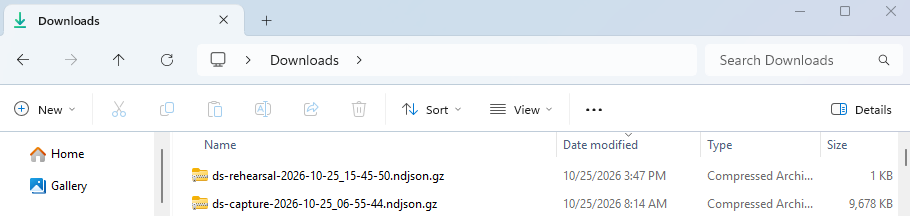
ds-rehearsal-… file comes from an OBS rehearsal.The ride report
- Open the ride report and pick your
ds-capture-….ndjson.gzfile. - Optional, for sharper numbers: your weight, height, FTP and FRC (left blank, your Zwift profile in the recording is used, and 15 kJ for FRC), and your bike. Measured from my draft is the best choice for the bike: it reads your drag from the draft Zwift gave you.
- Optional, your video: paste the YouTube link and say whether it's the OBS recording the Director Sportif started or your stream's replay. Each minute in the report then gets a ▶ link to that moment.
- Press Make my report. It takes a minute or so, then shows in the page.
- Save the report. It's a single page you can keep and open any time. We don't keep a copy.
See an example report from a real race.
What's in it
- The summary: your place by Sauce's live count, what you wasted in the group on average and where it went (where you sat, or pushing into wheels), and where you lost the group, if you did.
- The numbers: what your position cost, the share of the ride in the draft and the energy the pack gave you, average power, work and speed.
- The course: its height profile, then section by section (each sprint, climb and the flat between): your time, power, what your position cost, your spot in and out, and your group.
- Your scores: Workhorse, Wheelsucker and Saboteur, for the ride and your best 1, 5 and 20 minutes.
- Where you rode: how long in a group, with one other rider and alone, and what you were doing in the group (on a good wheel, too close, boxed in…).
- Your costliest and best minutes, each with its ▶ video link.
- What the director said: how many of each call you got.
- Your CdA: your drag read from the draft, checked against the bike you picked.
- The numbers we used, so you can see what it's built on.
What happens to your file
Before anything is sent, your browser takes your name, Zwift id, profile and heart rate out of the file, then encrypts it so only our report program can open it. Other riders are already only dots under made-up ids. We make the report, send it back, and keep nothing. More in privacy.
When it doesn't work
| What happened | Likely why | What to do |
|---|---|---|
| No recording of a race | Record every event was off, or the Director Sportif window was closed. | Turn on Record every event, and keep the window open (it can sit behind Zwift). |
| The recording starts late | It waits until 5 minutes before the start, or the race moving. | That's on purpose: no half hour of pen in every file. Press Record if you want the pen too. |
| Mark is grayed out | Nothing is recording. | Press Record first. |
| Two files for one ride | Record all the time and Record every event are both on, or you pressed Record in the warm-up: the free ride before and after get their own files. | Use the event's file for the report. |
| The report says it can't read the file | It isn't a Director Sportif recording, or it was cut off while copying. | Pick the ds-capture-….ndjson.gz from your Downloads again. |
| The ▶ links land at the wrong moment | The video kind is wrong, or OBS wasn't connected to the Director Sportif. | Check the video kind. If asked, type when the recording began in the video. |
See also: Make a ride report · OBS · The meters · All guides