Guide › The Grid
The Grid
The Grid is the window that shows the meters. It's yours to lay out: which meters, how big, in what order, with or without their words, and when they turn yellow or red.
What it is
- A display and nothing else. The Director Sportif window does the work (the meters, the calls, the recording) and the Grid shows what it sends. Keep both open. The Director Sportif window can sit behind Zwift.
- "waiting for the Director Sportif window" means the Grid isn't getting anything: that window is closed, or still starting. It shows within a few seconds of the Director Sportif window opening.
- See-through over Zwift. A new Grid has no background: only the numbers show over the game. Move the mouse over it to see the window.
- It fits itself to its slots when you change the slots, the columns or the text size (below). In between, a size you drag stays, ride to ride.
- The settings: right-click the Grid to show its title bar, then the gear. Changes show on the Grid straight away.
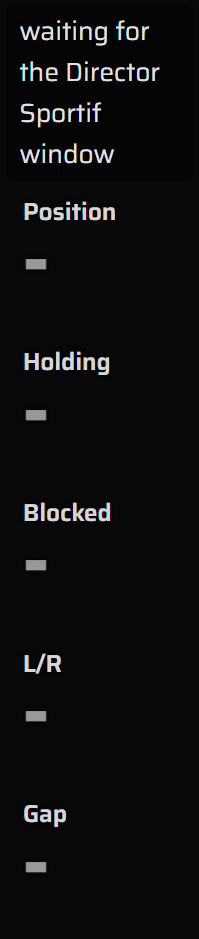
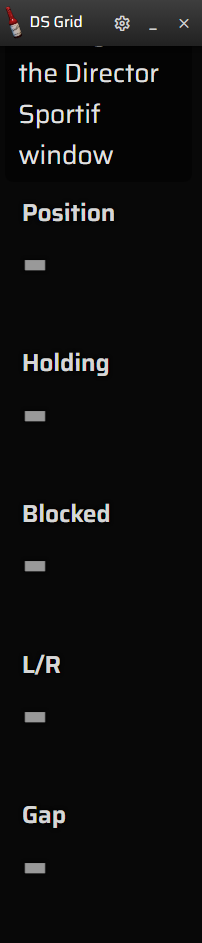
The pictures on this page were taken before the Gap meter became Wheel gap.
A new Grid
It starts with the five meters that matter most, numbers only:
| Slot | Size | Shows |
|---|---|---|
| Position | Large | What your spot costs against the best spot at your speed, W |
| Holding | Large | Watts beyond what keeping your place needs |
| Blocked | Normal | Watts lost pushing into the wheel ahead |
| Wheel gap | Normal | The gap to the wheel in front, wheel to wheel |
| L/R | Normal | How far left or right of that wheel you sit |
The words ("back off", "step left") aren't on the Grid at first. They're all in one place, the Director Sportif window's line, because words spread over many meters aren't where you're looking. What each meter means: the meters.
Choosing the slots
Gear ▸ Slots. Each row is one slot, shown in this order: top to bottom, or left to right and then down with more than one column.
| In each row | What it does | Tip |
|---|---|---|
| The meter | What the slot shows: any meter, a word, or a basic like power. | The list is below. |
| Size | Large, Normal or Small. | Large for the one or two you watch most. |
| word | Shows the meter's word under its number. | Handy if you'd rather look at one window. The Director Sportif window shows them all anyway. |
| yellow / red | The number turns yellow, then red, at these values. | Empty uses the meter's own (the starting ranges). A yellow higher than red flips it, so low numbers are the bad ones (for Speed, say). |
| ↑ ↓ × | Move the slot up or down, or remove it. |
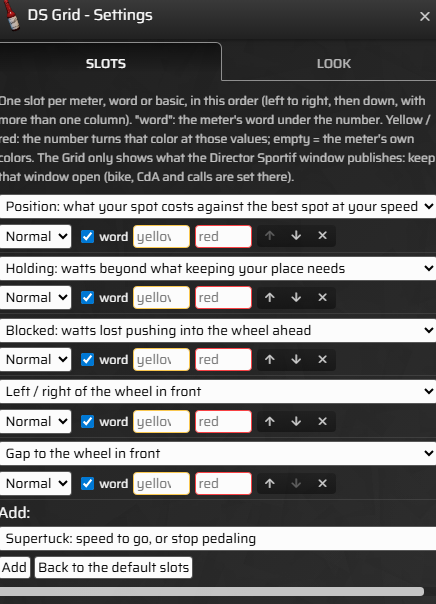
- Add: pick a meter at the bottom and press Add. It goes at the end; move it up from there.
- Back to the default slots puts back the five above.
What a slot can show
- Director Sportif: every meter: Position, Holding, Blocked, Passing, Pack cost, Wheel gap, L/R, Supertuck and its drag, Surface, FRC, Burritos, Demand, Group, CdA, and Director (the one call to act on now). Each is explained in the meters.
- Words: All words, the call and every meter's advice in one line (the same line as the Director Sportif window), or any one meter's word on its own, big ("Position word").
- Basics: power, speed, Zwift's draft, cadence, your heart rate and the grade, so one Grid can hold everything you watch. Heart rate is only ever yours.
The look
Gear ▸ Look.
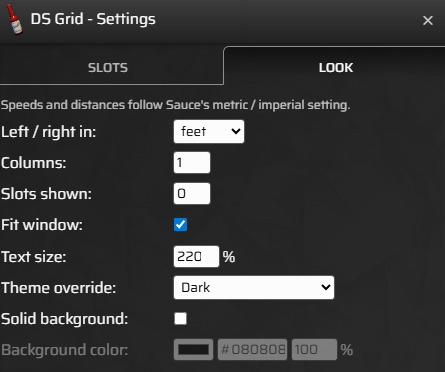
| Setting | What it does |
|---|---|
| Left / right in | Feet (the default) or meters for L/R. Speeds and distances follow Sauce's metric or imperial setting. |
| Columns | Slots side by side. 1 is a single column, top to bottom; 5 puts the new Grid in one row. |
| Slots shown | Shows only the first few slots of the list; 0 shows them all. A quick way to try a smaller Grid without losing your list. |
| Fit window | On: the window fits the slots whenever you change them or the text size, and a size you drag in between stays. Off: you size it, and the text grows with the window. |
| Text size | 50–300%. With Fit window on, a smaller text size gives a smaller Grid. |
| Theme override | Starts as see-through dark. Pick any Sauce theme, or follow Sauce's. |
| Solid background | A plain color behind the slots, for OBS: green unless you change it, and you can set how see-through it is. |
Ways to set it up
- Over Zwift, racing: the new Grid as it is, one column, near the middle of the screen where your eyes already are. Keep it small: two or three slots you'll really look at beat ten you won't.
- One row across the top: Columns = the number of slots, Small or Normal sizes.
- Everything in one place: add Power and FRC to the meters, so you can close other windows.
- On video: turn on Solid background, capture the Director Sportif - Grid window in OBS and key out the green. Add an All words slot to put the advice on screen too. More in OBS.
- Two layouts? One Grid holds one layout. Use Slots shown to switch between a full list and a short one.
When it doesn't work
| What you see | Likely why | What to do |
|---|---|---|
| "waiting for the Director Sportif window" | That window is closed. | Open it from Sauce's settings ▸ Windows. Keep it open; it can sit behind Zwift. |
| Numbers 0 or blank | Nothing to measure: riding alone, just after a teleport, on a bike that gets no draft, or Sauce is watching another rider. | Join a group. In Sauce's Overview window, make sure it's watching you. |
| "No meters" | Every slot was removed. | Gear ▸ Slots: add some, or Back to the default slots. |
| Can't find the title bar | It hides until you need it. | Right-click the Grid. |
| Too big or too small | It refits when you change its slots, columns or text size. | Drag it to the size you want: that stays until the next such change. Or turn Fit window off. |
| Can't see it over Zwift | It's see-through and nothing is showing yet. | Move the mouse over where it is, or pick a solid theme in Look. |
See also: The meters · OBS · Install and first setup · All guides